Deprecated: Using null as an array offset is deprecated, use an empty string instead in /home/u519450251/domains/efficient-is.co.uk/public_html/wp-includes/functions.php on line 1194
NHS & Healthcare Archives | Efficient IS Skip to main content

What a Clinical Simulation Suite Needs From Its AV

What a Clinical Simulation Suite Needs From Its AV

Cameras and microphones are the easy part. The harder questions are who can watch the recordings, how long you keep them and whether learners know they’re being filmed.
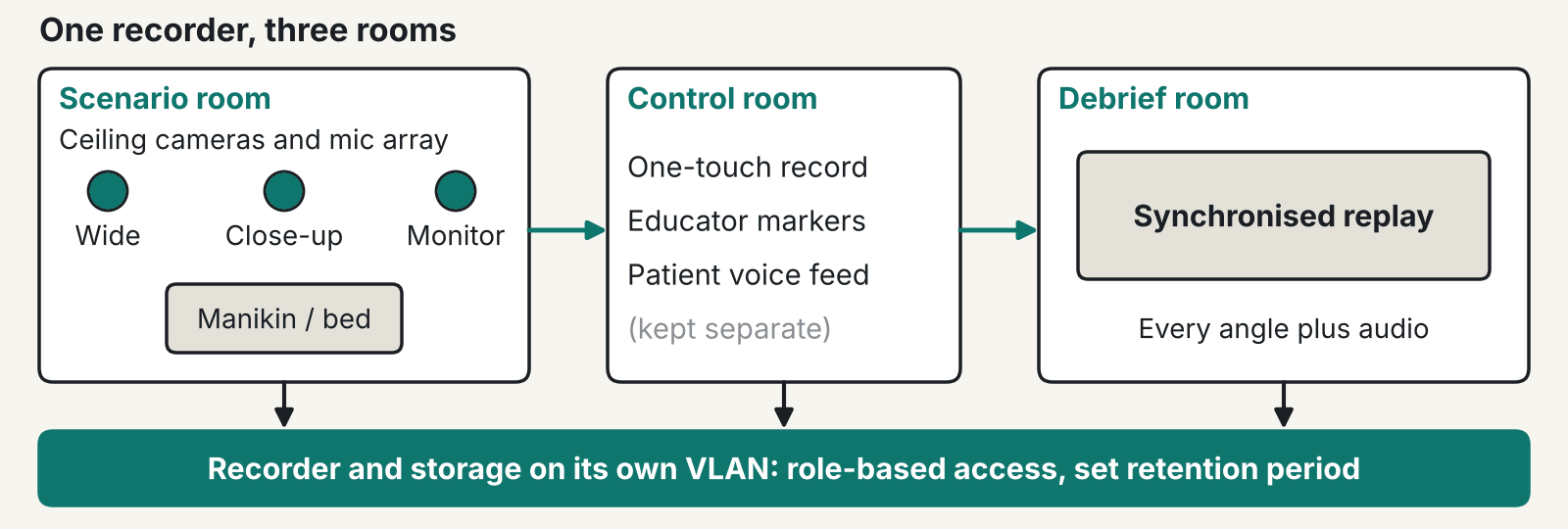
Illustrative diagram: a clinical simulation suite with ceiling cameras and microphones in the scenario room, a control room, and a debrief room fed by a recorder on its own VLAN
A clinical simulation suite sketched as three rooms feeding one recorder. Illustrative, not a design for your building.

A clinical simulation suite needs clear sound at the bed, camera angles that still work when the room changes, and a recording policy your data protection officer has signed off. The ICO’s page on special category data shows why the recordings need more thought than the cameras do.

Why sound comes first in a clinical simulation suite

In our experience, poor audio is the commonest complaint about simulation recordings, so spend there first. Footage of a manikin with muffled sound is close to useless in the debrief room. Debrief is mostly about what people said and when they said it.

Ceiling microphones above the bed pick up the whole team without anyone wearing a pack. Keep them clear of air handling outlets. A mic under a diffuser records ventilation and not much else. We normally specify beamforming ceiling arrays for this. The assessment pods described further down use the same type.

Give the instructor’s patient voice its own feed. When the control room speaks as the patient, that audio should be separable from the room mics, so you can replay the learner’s side alone. A facilitator’s coaching then can’t land in the recording by accident.

In our view, audio deserves the budget before a fourth camera does. We’d skip the extra camera every time. Test the sound with the whole team talking over each other.

How many cameras does a scenario room need?

Two or three angles cover most scenarios in a clinical simulation suite, and one of them should see the patient monitor or the procedure area. A wide shot shows who stood where. A close-up shows hands and technique. The third angle lets the debrief check what the team could actually see when they made a call.

Rooms in a clinical simulation suite change. One week it’s a ward bay, the next an ICU, a theatre or a home visit. Ceiling-mounted PTZ cameras with saved presets cope with that. Fixed cameras on a wall bracket usually don’t. Cable for the reconfiguration as well: leave data points at more than one position, because a camera can only go where its cable reaches.

Keep a tested spare camera and encoder on the shelf before the first booked assessment. A dead camera on an exam day, with nothing to swap in, is a bad day for the whole cohort.

Camera and encoder support differs between simulation platforms and changes between versions. Get the vendor’s supported list in writing before you specify anything.

Debrief and observation

A debrief room in a clinical simulation suite needs synchronised replay on a display big enough for the whole cohort, with every angle and the audio playing back together. Add one-touch start and stop in the scenario room, and let the educator drop markers on the timeline as things happen. Nobody then has to hunt through an hour of footage for the moment that matters.

The ASPiH Standards 2023 cover this ground at a high level. Standard 12 deals with facilitated reflection, or debriefing, and Standard 17 lists confidentiality and safe sharing of information and data. The standards don’t mention audiovisual kit or recording, so they won’t tell you how many cameras to buy. If a supplier says ASPiH requires a particular system, ask for the clause. We couldn’t find one.

Observation is changing too. In our experience one-way glass is giving way to screens and streams, with observers watching a live feed from another room. That brings two details people forget. The feed lags the room, so observers react late. They also need to hear the scenario without the scenario room hearing them. Several simultaneous streams need a dedicated VLAN too, which is a job for your network design team early on.

Are simulation recordings personal data?

Yes, under UK GDPR, because they show identifiable people. They aren’t automatically special category data. The ICO list covers health data, biometric data used for identification and several other types. A learner running a scenario on a manikin doesn’t normally fall into any of them.

That can change. A recording might reveal something about a staff member’s health, or a real patient might appear in it. Voice or face analytics would change it as well, because the ICO says inferring a special category attribute from an image counts as special category processing.

Consent is awkward. The ICO’s consent guidance says public authorities, employers and anyone in a position of power should avoid relying on consent unless they can show it is freely given. A student on a course that requires simulation can’t easily say no. Many NHS boards and universities therefore rest on a different lawful basis. Your DPO decides that, not your installer and not us. This is not legal advice.

Whatever the basis, a clinical simulation suite should tell learners before recording starts. The pitfalls we see most are recording that begins without learners knowing and recordings saved on a local PC. Shared logins and streams that anyone can open come next.

Decide retention before you buy storage

Pick the retention period first, because the platform’s storage size and auto-delete rules follow from it. The storage limitation principle in UK GDPR says personal data should be kept in identifiable form for no longer than necessary. The ICO’s storage limitation guidance says to set standard periods by category, ideally in a retention schedule, and to erase or anonymise at the end. It also warns that moving data offline isn’t the same as deleting it, and that deleted data should come out of backups where possible.

For a clinical simulation suite, that means asking some dull questions early. Are formative recordings deleted after the debrief? Do assessed ones stay until any appeal window closes? Those are your policy calls. We don’t make them for you. We do check that the platform can enforce them, with role-based access, deletion on a schedule and a separate login for every educator. Shared logins break the audit trail, and you will want that trail the first time someone asks who viewed a particular recording.

Questions to put to a platform vendor

One simulation vendor describes its capture software as a simulation education and training management platform with integration to its own simulator and handheld control products. That’s the vendor’s description, so treat it as a claim to test. We haven’t verified current feature lists or integrations for any platform. Ask each vendor the same plain questions.

  • Which cameras, encoders and microphones does this version support?
  • Where are recordings stored, and who can open them?
  • Can it delete on a schedule, backups included?
  • What happens to a session if the network drops mid-scenario?
  • Who do we ring at 08:30 on an exam day?

For a worked example of the AV hardware, our SFRS Incident Command Centre project has assessment pods. Each has a dual-lens PTZ camera, beamforming ceiling mics, a media processor for local recording and RTMP/RTMPS streaming, a central DSP, a touch panel and wireless tablet control for the assessor. There is also a plenary observation space. It isn’t a clinical simulation suite, but you’d meet the same pieces in one.

We design and install the AV side from Glasgow and work with whichever simulation platform your educators use. See our Simulation Suites page, our NHS and Healthcare work and what we do for universities.

The bottom line: Spend on sound before a fourth camera. Write the retention rule before you buy storage, and get your DPO to settle the lawful basis before the first learner is recorded.
Questions worth asking

FAQ

What AV does a clinical simulation suite need?

Ceiling cameras, ceiling microphones, a control room with one-touch recording and a debrief space with synchronised replay. Add a live feed if you have a separate observation room. Your simulation platform decides which cameras and encoders it will accept, so confirm that with the vendor first.

Do simulation recordings need learner consent?

Not necessarily. The ICO says organisations in a position of power should avoid relying on consent unless it is freely given. Your DPO picks the lawful basis, and learners should still be told before recording starts.

How long should simulation recordings be kept?

There is no figure in the ASPiH standards or in the ICO guidance we read. UK GDPR says no longer than necessary. Set a period for each type of recording, write it in your retention schedule and make the platform delete on that schedule.

Does ASPiH say what AV a clinical simulation suite must have?

No. The ASPiH Standards 2023 cover debriefing under Standard 12 and confidentiality of data under Standard 17. They don’t mention audiovisual kit or recording.

Can observers watch a scenario live from another room?

Yes, over a stream. Plan for a short delay and a one-way audio return, so observers hear the scenario and the room never hears them. Keep the stream on its own VLAN and limit who can open it.

Is a recording of a simulation special category data?

Only in some cases. A recording that reveals health information, or one where voice or face analytics are applied, can be. Ask your DPO to assess each use before you buy any analytics feature.

Planning a new simulation suite or refitting one?

Tell us the rooms, the cohort size and the platform your educators use, and we’ll give you a straight answer.
๐Ÿ“ž 0845 095 3600   โœ‰ av@efficient-is.co.uk

Book a discovery call

MDT Meeting Room AV for the NHS: Audio, Screens and Controls

MDT Meeting Room AV for the NHS: Audio, Screens and Controls

Most MDT rooms get the screen sorted and the sound forgotten. We’d do it the other way round. Here’s the order we work in, and who signs off what.

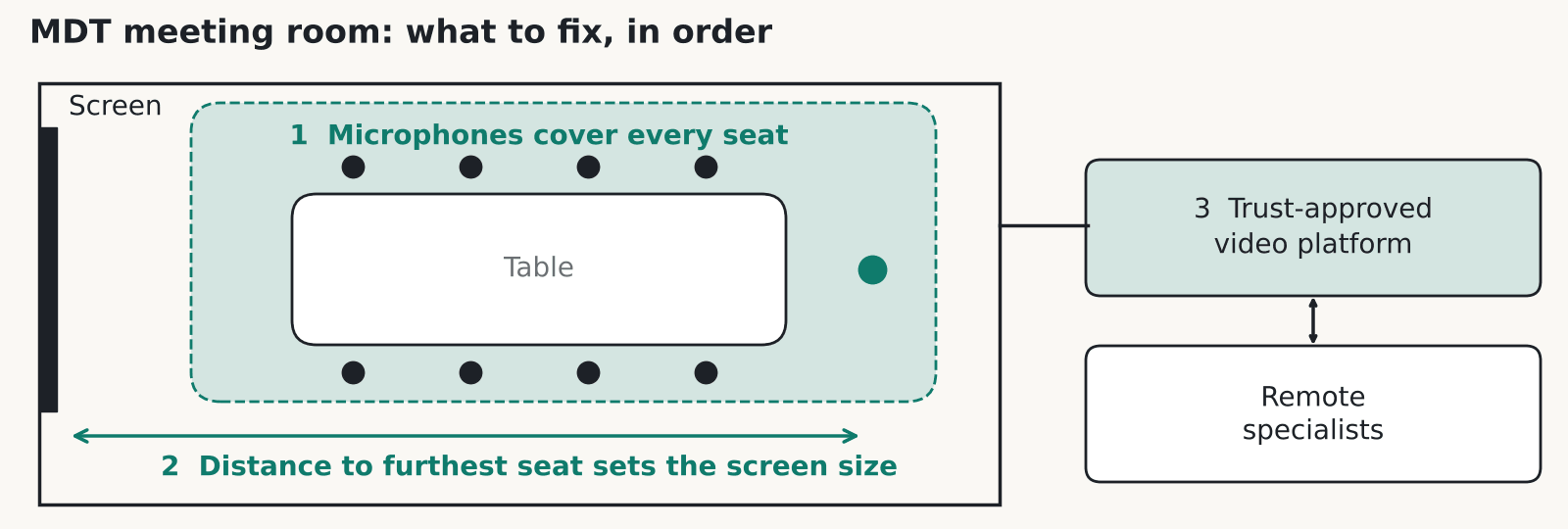
Illustrative diagram: plan of an MDT meeting room with a ceiling microphone zone over the table, a screen sized for the furthest seat and a link to the trust-approved video platform
A schematic MDT meeting room. Audio coverage over every seat, a screen sized for the furthest seat, and a remote link through whichever platform the trust has approved.

An MDT meeting room works when the people dialling in can hear everyone at the table and the people at the back can read the scan. Spend the first part of the budget on audio, then on screen size for the furthest seat, then on a control panel a locum can use cold. NHS England publishes guidance on streamlining MDT meetings for Cancer Alliances.

What an MDT meeting room actually has to do

A multidisciplinary team meeting puts clinicians from several specialties in one room, often with a few more on a call, to agree what happens to each patient. Cases come up one after another. Someone puts up a scan and talks to it. Someone on the call asks a question. The AV has to keep up without anyone fiddling with a cable. Specialists may dip in for a single case and leave, so people join and drop off the call all through the list. The room should be ready before the chair walks in, with the call live and the first case on screen.

NHS England’s guidance focuses on complex cases. The page we read says nothing about hybrid technology, so we can’t tell you what a national standard asks of the room. What we can describe is what goes wrong on site.

One boundary matters here. Our work on these rooms is meeting room AV and isn’t a medical device. Diagnostic-grade viewing is a question for your radiology and clinical engineering leads, and the information governance (IG) decisions stay with the organisation.

Why audio comes first in an MDT meeting room

In our experience audio is the commonest failure in an MDT meeting room, and it’s the first thing we’d fix. Clinicians turn to look at the screen while they talk, and they sit at different distances from any microphone. Two people mutter about the next case while somebody on the call tries to speak.

The person on the call suffers most. They can’t see who’s speaking, so a missed word can mean a missed decision. Bad audio also makes a room feel broken, and people stop using it for hybrid meetings.

The fixes are plain. Cover every seat with ceiling or table microphones, so nobody has to lean in. Use echo cancellation in a DSP (the box that processes the sound) so the far end doesn’t hear itself. Place the speakers so the remote voice comes from the screen direction, which helps people feel they’re talking to someone. In a hard-surfaced room, soft finishes or a few acoustic panels make a bigger difference than a dearer microphone.

Test the MDT meeting room full. An empty room flatters every system.

Sizing screens for the furthest seat

Work out the distance from the screen to the furthest seat, and size the display so a scan is readable from there. In our experience rooms often go wrong the other way: somebody picks the biggest screen the budget allows, and then the people sitting nearest to it can’t take it all in.

In our experience a single 65 inch screen runs out of road in a longer room. Two screens often work better, one for imaging and one for the people on the call and the case list. That saves the chair from flicking between views.

Make the supplier prove it. Ask them to put one of your real scans on a demo screen, then walk to the furthest seat and read it. If you can’t, the screen is too small or the room needs a second one. Check the source side too. The laptop or PC that feeds the screen should connect with one cable at the lectern end, and the room should tolerate a visiting consultant’s own laptop.

Hybrid MDT meetings and the trust’s approved platform

The platform is a decision for the organisation, and the room should fit whatever it has approved. In Scotland, Futurescot reported that NHS Scotland rolled out Microsoft Teams to more than 160,000 staff in May 2020, so a Teams-ready room is a sensible starting point for many Scottish boards. That article gives no clinical-use or IG guidance, and neither do we.

Near Me is a different thing. It’s the national video consulting service for patient appointments, described on the NHS Scotland video consulting site. It isn’t the platform for MDT meetings.

In England, NHS England’s remote consulting page covers tools such as DTAC assessment and the DCB0160 clinical risk standard. That’s aimed at patient-facing consulting tools, so ask your IG and clinical safety leads whether any of it reaches a meeting room.

Before the install, get four answers from IT: which platform and room device are approved, whether outside specialists can join as guests, whether recording is allowed at all, and who decides what can be shown on screen. Your network team will also need to supply a data point and any VLAN or firewall rules for the room.

Look at the sightlines as well. Patient names on a screen are visible through a glass door.

Controls for people who use the MDT meeting room once a month

The control panel should work for someone who has never seen it. A consultant who joins one MDT a month will not read a manual. One button to start and an obvious way to hang up cover most of it.

We’d skip any control system that needs a training session to learn. If the room needs a laminated A4 sheet taped to the wall, the panel has failed. Keep the rest simple: wireless sharing from a laptop should be optional, and the room should wake and sleep on its own so nobody has to find a remote.

Label sources by what people recognise, such as Laptop and Imaging, and never by input numbers. Put the panel at the chair’s seat or on the table, where the person running the list can reach it. Set the camera to frame the whole table by default, so nobody has to steer it while a case is being discussed. Keep one spare HDMI lead and one USB-C lead in the table box for visitors.

Our meeting room AV work uses the same principle for every room: the person who turns up cold should still get the meeting started. In an MDT room that person might be a locum or a visiting specialist, and the case list won’t wait for them.

Installing an MDT meeting room around live clinical activity

These rooms are used every week and sometimes every day, so the install has to fit around the clinical timetable. Our NHS Tayside case study covers ward eWhiteboards, not MDT rooms: 32 to 65 inch screens across NHS Tayside hospital sites, procured via Insight, with installs scheduled around live clinical activity. The same discipline applies here.

Agree the working windows early. Find out what access, badges and local approvals the site wants for an outside installer, and whether any local infection control rules apply to the work. Book out-of-hours time for anything noisy. Agree, too, who can sign the room off as ready for the next meeting.

Plan for a handover session at the room itself, with the people who chair the meetings as well as the estates team.

See our MDT rooms and NHS and Healthcare pages.

The bottom line: Fix the audio, size the screen from the furthest seat, and get the trust’s platform decision in writing before anyone orders hardware.
Questions worth asking

FAQ

What AV does an MDT meeting room need?

At minimum, microphones that cover every seat, speakers, a screen sized for the furthest seat, a camera for the remote participants and a simple control panel. The room also needs to work with whichever video platform your organisation has approved. Audio is where most rooms fall short.

Is an MDT room a medical device?

No. The AV is ordinary meeting room equipment. Diagnostic-grade viewing and clinical safety questions sit with your radiology, clinical engineering and information governance teams.

Can Near Me be used for MDT meetings?

Near Me is the national video consulting service for patient appointments in Scotland. It isn’t the MDT platform. Your board will say which tool it has approved for clinician meetings, and Teams is widely used across NHS Scotland.

How big should the screen be in an MDT meeting room?

Size it from the furthest seat, then see what the budget allows. Put a real scan on a demo screen and read it from the back row. A single 65 inch panel may be too small in a longer room, in which case two screens are a better answer.

Who signs off recording in an MDT meeting room?

Your organisation does. Information governance teams decide whether meetings can be recorded and what may appear on screen. We fit the equipment to that decision.

Can installers work while the ward or department is running?

Yes, with planning. On NHS Tayside ward eWhiteboard installs, work was scheduled around live clinical activity. Agree access, time windows and sign-off with the site before anyone arrives.

Fitting out an MDT room?

Tell us how many people sit in the room, who dials in and which video platform your board has approved. We’ll give you a straight answer on the AV.

๐Ÿ“ž 0845 095 3600   โœ‰ av@efficient-is.co.uk

Book a discovery call

Hospital Wayfinding Screens: Reducing Missed Appointments and Front-Desk Queues

NHS & Healthcare · 2 min read

Getting patients to the right department first time is a bigger win than it sounds

A surprising amount of front-desk time in busy healthcare settings goes on the same question, repeated hundreds of times a day: which way to a department that isn’t visible from the entrance.

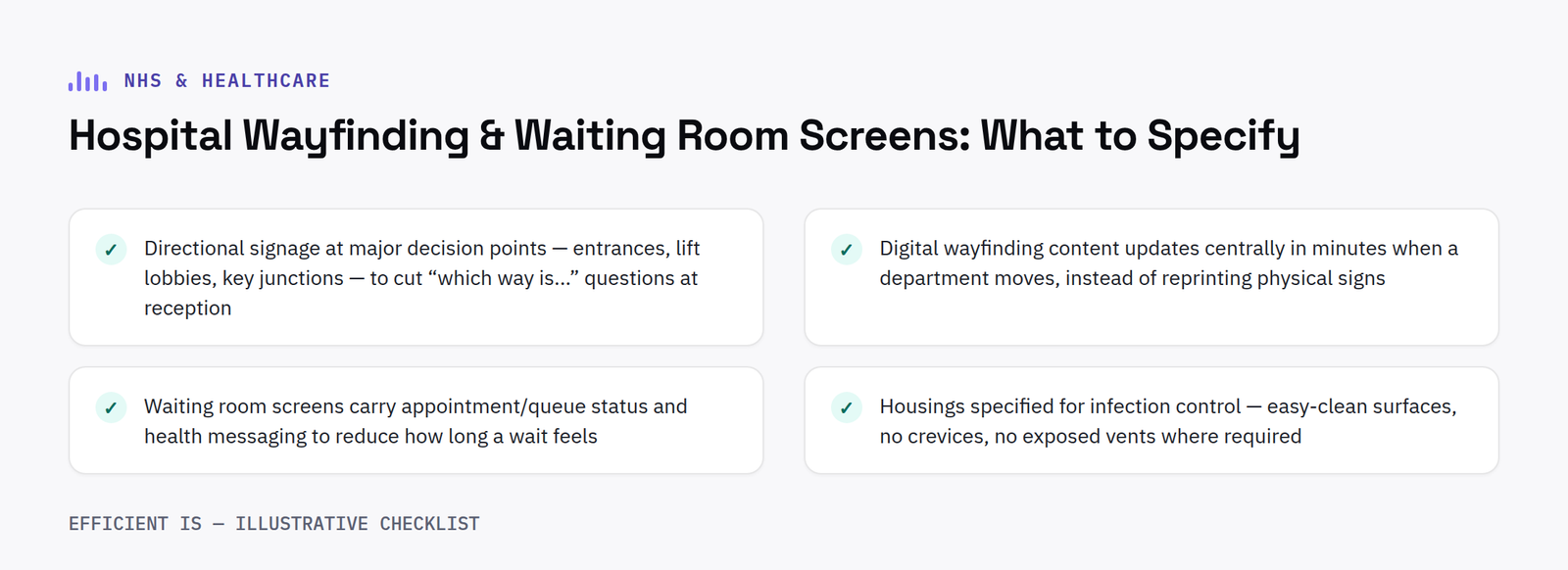
Checklist diagram: what to specify for hospital wayfinding screens and waiting room displays, including infection-control hardware requirements

Where hospital wayfinding screens actually reduce pressure

Clear directional signage at key decision points, main entrances, lift lobbies, major corridor junctions, measurably reduces the volume of “which way is…” questions reaching reception staff, freeing that time for patients who need actual help rather than directions. Digital wayfinding has a real advantage over static signs here: when a department relocates or a corridor closes for works, the content updates centrally in minutes rather than needing new physical signs printed and fitted.

What waiting room screens are actually for

Beyond directions, waiting area screens showing appointment/queue information and general health messaging genuinely help reduce how long a wait feels, even when the actual wait time is unchangeda well-documented effect in service-design research generally, not just healthcare specifically.

Hardware considerations specific to clinical settings

Housings need to be appropriate for infection control in clinical areas, easy-clean surfaces without crevices that trap dirt, and no exposed vents where required. This is a design question to raise explicitly with your supplier at the outset of a healthcare project rather than assuming a standard commercial enclosure is automatically suitable.

The bottom line: Prioritise wayfinding at major decision points to cut front-desk interruptions, and confirm infection-control-appropriate hardware specifically for any screens going into clinical areas.
Questions worth asking

FAQ

Is signage hardware suitable for clinical and infection-controlled areas?

Hardware should be specified with appropriate, easy-clean housings for clinical environments, this should be confirmed for any specific infection-control requirements during project design.

Can waiting room content be updated centrally across multiple healthcare sites?

Yes, cloud-based content management allows scheduling and updates across every site from one dashboard.

Integration with existing hospital systems

Wayfinding content is far more useful when it can pull live information rather than relying entirely on static, manually updated screens. Integration with a hospital’s patient administration system, showing genuinely current clinic delays or department status, or with an estates system that flags a corridor closure automatically, keeps information accurate without relying on someone remembering to update a screen manually every time something changes. Not every hospital will want or need this level of integration on day one, but it is worth confirming a chosen platform is at least capable of it, so the option exists later without needing to replace the whole system.

Multi-language support is another consideration specific to healthcare settings that is easy to overlook at the specification stage. A wayfinding screen that can cycle key directional information through the languages most commonly needed by the local patient population, rather than English only, genuinely reduces the number of people who need to stop and ask for directions, which is exactly the outcome wayfinding screens are meant to achieve.

Accessibility matters just as much as language: text sized and contrasted clearly enough to read from a realistic distance, and directional icons that do not rely purely on colour to convey meaning, both make a genuine difference for patients and visitors with visual impairments.

Reliability expectations are also higher here than in most other settings. A wayfinding screen going offline in a busy hospital corridor causes real disruption rather than mild inconvenience, so remote monitoring that flags an offline screen automatically, rather than waiting for a member of staff to notice, is worth specifying as standard rather than an optional extra.

Have a project in mind?

Tell us what you’re trying to fix and we’ll tell you honestly what’s realistic.

๐Ÿ“ž 0845 095 3600  ·  โœ‰ av@efficient-is.co.uk

Book a discovery call

Immersive Rooms in Care Settings: A Different Tool for Engagement

NHS & Healthcare · 3 min read

Immersive rooms in care settings: more than a TV in the lounge

Digital engagement in care settings has mostly meant a television or a tablet handed to a resident. Immersive rooms are a genuinely different category, and a growing one in dementia and reminiscence care specifically.

Immersive rooms in care settings - calming projected light and colour effects used to create a structured, low-stimulation environment

Reminiscence content is where immersive rooms earn their place

Familiar scenes, a 1960s high street, a seaside promenade, a wartime living room, projected around a resident rather than shown on a small screen, engage in a fundamentally different way than passive television. For reminiscence therapy specifically, the scale and surround genuinely change how residents respond, particularly for those with more advanced dementia who may not engage with a standard screen at all.

It’s a calming tool as much as a stimulating one

The same technology that can recreate an energising scene can equally deliver a deliberately low-stimulus, calming environment, genuinely useful for residents experiencing agitation or sundowning, as an alternative or supplement to medication-led approaches. Content and intensity, controlled live by a member of staff, is what makes this workable in practice.

Realistic about what it replaces, and what it doesn’t

This isn’t a replacement for one-to-one care or activities-led engagement, it’s an additional tool, most valuable as part of a wider activities and wellbeing programme rather than a standalone purchase. Settings that get the most value tend to be ones that already have a strong activities team who can build sessions around the room, not ones hoping the technology does the engagement work on its own.

The bottom line: Immersive rooms in care settings earn their place primarily through reminiscence content and as a calming tool for agitation, genuinely different from a television, but an addition to a strong activities programme, not a replacement for one.
Questions worth asking

FAQ

Is this suitable for residents with advanced dementia?

Often yes, and in some cases more effective than a standard screen, the scale and surrounding nature of the projection can engage residents who don’t respond to passive television, though content and session length should be tailored individually.

Does a care home need a dedicated room?

Not necessarily, a single-wall installation in an existing lounge or quiet room is a realistic, lower-cost starting point, and is often more practical for a care setting than converting a dedicated space.

Off-the-shelf content versus bespoke scenes

Most systems come with a substantial library of ready-made scenes, oceans, gardens, seaside promenades, which covers a lot of ground for a new installation without extra cost or lead time. Bespoke content, a specific local landmark recreated for a reminiscence session, or a scene built around a particular resident’s own history, adds real value but takes longer to produce and costs more, so it is worth planning for as a second phase rather than a day one requirement. Most settings get more value starting with the ready-made library, learning what residents actually respond to over the first few months, then commissioning bespoke content for the handful of scenes that would genuinely add something the library does not already cover.

Staff confidence with the system matters as much as the content itself. A short, practical training session, not a lengthy manual, covering how to select and adjust a scene during an actual reminiscence or calming session, is usually enough for most care staff to use it competently. Settings that build this into new staff induction, rather than a one-off session for whoever happened to be on shift at installation, tend to get more consistent, more confident use of the room over time.

Have a project in mind?

Tell us what you’re trying to fix and we’ll tell you honestly what’s realistic.

๐Ÿ“ž 0845 095 3600  ·  โœ‰ av@efficient-is.co.uk

Book a discovery call

Find our work useful? Add us as a preferred source on Google.