A Teams Rooms upgrade pays off only when the hardware is still supported by its maker and can run a Windows version Microsoft supports. Check each room’s app release, its Windows version and whether the device is on Microsoft’s end of service list. If the Windows or maker check fails, plan a replacement. Patching won’t rescue a device the maker has dropped.
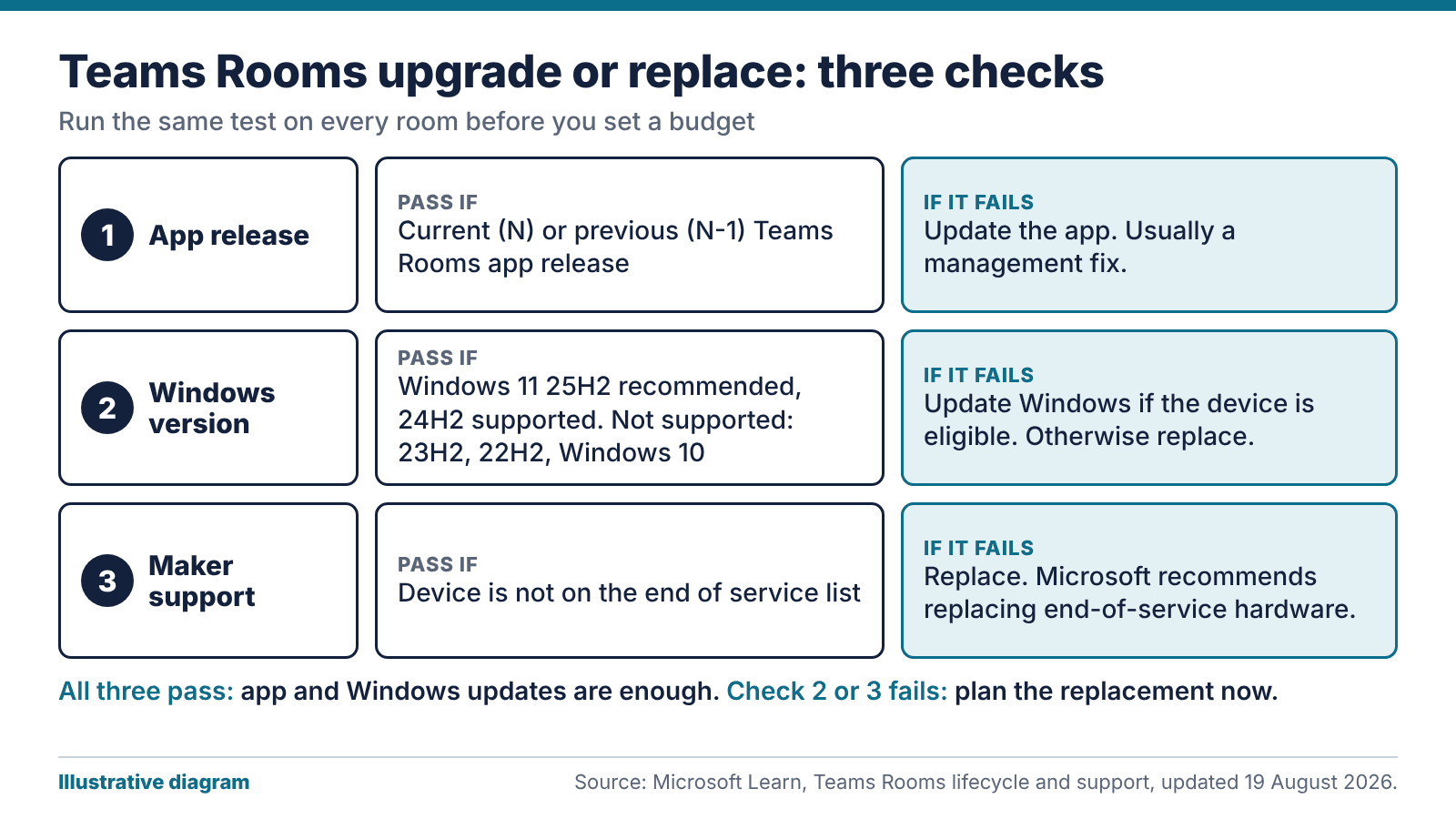
Three checks that decide a Teams Rooms upgrade
Start with the room, before you open a price list. Pull the same facts for every Teams Rooms device you run and put them on one sheet, so the pattern shows.
- App release. Is the room on the current Teams Rooms app, or the one before it?
- Windows version. Is the device on a version Microsoft lists as supported?
- Maker support. Has the manufacturer stopped supporting the hardware, so that Microsoft lists it as end of service?
If all three pass, the Teams Rooms upgrade is just an update to the app and operating system, and it’s a small job. If the first fails, fix it. That’s usually a management problem. If the second or third fails, find out how long the room has left and plan its replacement.
Our view: the third check sets the budget. A software problem gets fixed in place, but a device the maker has dropped has to be swapped.
How the Teams Rooms app is supported
The Teams Rooms app is evergreen. Microsoft’s lifecycle support page says it supports the most current major release (N) and the previous one (N-1). If you hit a defect in a release that isn’t the latest, you have to install the latest to get the fix.
A room left alone for long enough can fall two releases behind. Then a fault call turns into an upgrade job before anyone can diagnose anything, and you’re running unsupported software on a room that still looks fine.
We’d treat every Teams Rooms upgrade, even a minor app update, as routine maintenance with a named owner. Check the rooms monthly and flag any that are a release behind. The register needs a column for the release number, because “updated recently” tells you nothing. Management tooling helps. Someone still has to look.
If a room turns out to be two releases behind, the fix is the same as for any missed update: bring it current, then find out why it fell behind and who was meant to be watching it.
Which Windows versions a Teams Rooms upgrade can use
Teams Rooms on Windows needs a version Microsoft has validated for the app. At the time of writing, the lifecycle page lists:
- Windows 11 25H2, available from 3 August 2026: supported and recommended.
- Windows 11 24H2: supported.
- Windows 11 23H2 and 22H2: not supported.
A device still on 23H2 boots and looks fine, but Microsoft doesn’t support that version for Teams Rooms. It may need a feature update, or it may be unable to take one.
Microsoft also holds feature updates back on purpose, by up to six months or more after general availability, while it validates the app against the new build. During that period you shouldn’t update room devices by any means, including overriding the group policies. A brand-new room running one version behind is normal.
Windows 10 is a separate case. Support ended on 14 October 2025, and Microsoft says Teams Rooms on Windows doesn’t support devices placed on extended security updates. Eligible devices must move to Windows 11, and the rest need replacing. We cover the cost side in our post on Windows 10 ESU costs for AV PCs.
When the maker stops supporting the hardware
Device makers set their own hardware sales and support lifecycles, Microsoft explains. Once a maker stops supporting a device, Microsoft adds it to the end of service tab on its certified devices page.
Hardware on that list can keep receiving app updates and Windows feature updates. Without maker support, though, the device may meet bugs that can’t be fixed, and Microsoft recommends replacing end-of-service hardware to keep full supportability.
The NCSC takes the same line on out-of-date technology. Its guidance on obsolete products says that when buying hardware or software you should always consider the support lifetime of the product. It also treats paid extended support as a way to buy time, with a migration plan still needed.
Ask for the support end date in writing when you buy. If a supplier can’t give you one, that’s worth knowing before you sign. Put the date in your asset register with a reminder set a year before it arrives.
Where a Teams Rooms upgrade stops helping
A Teams Rooms upgrade can bring a room back into support when the fault is software. It can’t revive a device whose maker has walked away, and it won’t fix weak microphones, a camera mounted too high or an echoing ceiling.
Where only part of the room has aged, a partial refresh can work. The compute unit might be at end of service while the display, cabling, mounts and ceiling speakers are fine. Check the certified list before mixing parts, because an uncertified combination may be hard to get supported.
New camera features bring licensing and privacy questions. If AI framing is part of the reason for the refresh, read our post on AI tracking and UK GDPR for meeting room cameras before you specify it.
If more than one part has aged, or the layout has changed since the room was fitted, replace the whole room. A new compute unit in a room people have outgrown fixes the wrong problem. Our meeting room AV service can survey and advise.
A register for the whole estate
Build a register with one row per room: the device, the app release, the Windows version, the date the maker’s support ends and any recent faults. Colour the rows: green for supported, amber for a release behind or a year from the support end date, red for out of support. Review it at least once a year, and again whenever Microsoft changes the supported list.
Stagger the replacements. Putting every room on the same day for the same year creates a spike in cost and disruption, and it makes everything age together again. A steady replacement rate smooths both. If you buy in volume, our hardware procurement and staging service can build, image and test the units before they reach site.
Run each round of Teams Rooms upgrade and replacement work from the register: rooms in red first, then amber, with the green ones left alone. Put the register in front of whoever holds the budget as well. A support end date is something finance can act on.
The bottom line: a Teams Rooms upgrade works when the fault is the app or Windows and the maker still supports the device. For anything else, replace. Keep the three checks in a register that somebody reviews every year.
FAQ
How long does Teams Rooms hardware last?
There’s no single figure. Device makers set their own sales and support lifecycles, and Microsoft lists devices that are out of support on its end of service tab. Ask your supplier for the support end date in writing.
Which Windows versions are supported for Teams Rooms?
As of Microsoft’s page updated 19 August 2026, Windows 11 25H2 is supported and recommended, and 24H2 is supported. Versions 23H2 and 22H2 are not supported. Check the page before any rollout, because the list changes.
Can I keep a Teams Rooms device on Windows 10 with ESU?
No. Microsoft says Teams Rooms on Windows doesn’t support devices placed on extended security updates. Eligible devices need upgrading to Windows 11, and the others need replacing.
What does N and N-1 mean for the Teams Rooms app?
Microsoft supports the latest major release of the app (N) and the one before it (N-1). Any older release is out of support, and a defect fix means installing the latest. Review your rooms monthly so none falls behind.
Should I replace the whole room or just the computer?
Swap the compute unit alone only when the rest of the room is sound and the combination is certified. If the camera, microphones or layout have aged too, replacing the whole room costs more at first and saves repeat visits.
Will a Teams Rooms upgrade make an old device safe?
Only partly. The NCSC says out-of-date technology exposes you to vulnerabilities that become known to attackers, and that the only fully effective fix is to stop using the obsolete product. A software update can’t restore maker support, so plan the replacement before support ends.