Meeting Room Booking System and Wireless Presentation: What to Check Before You Buy
Ghost bookings and failed screen sharing are the two meeting room complaints we hear most. Both come down to what sits behind the wall and on the network.
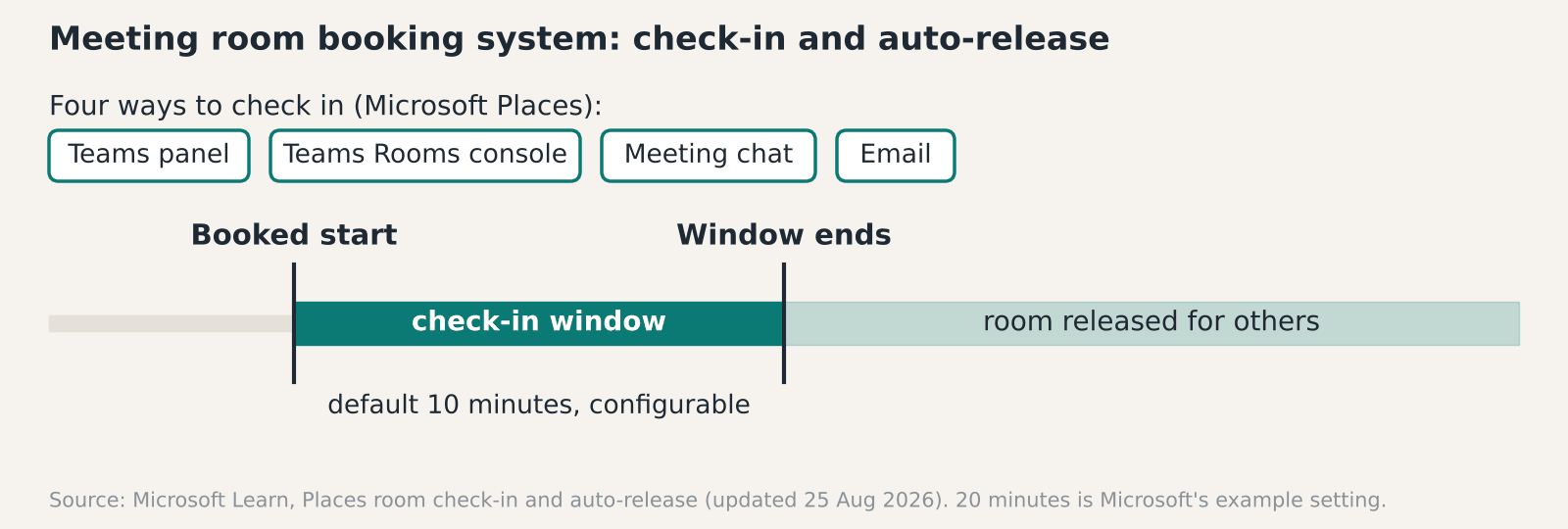
A meeting room booking system earns its money by freeing rooms that nobody turned up for. Microsoft Places can release a booked room automatically if nobody checks in, and the default window is 10 minutes. That only works if each room has a way to check in, and the panel, licence and network behind it are in place.
How a meeting room booking system stops ghost bookings
It asks people to confirm they’ve arrived, then releases the room if they don’t. Microsoft’s documentation describes four ways to check in: the Teams panel at the door, the join button on a Teams Rooms console, the Teams meeting chat, or email. The release window defaults to 10 minutes and can be changed. Microsoft’s example sets 20 minutes through a setting called PostReservationMaxClaimTimeInMinutes.
Three details catch people out. Changes can take up to 48 hours to apply. The panel check-in needs a recent Teams panel app version, which Microsoft lists. And licensing matters: Teams Premium bought before 1 April 2026, or a space licence (Teams Rooms or Shared Space) on the room. The page was updated on 25 August 2026.
Microsoft recommends limiting auto-release to rooms that have a panel or a Teams Rooms device. That’s sound advice, since a room with no way to check in can only release itself on a guess. In our view 10 minutes is tight for a boardroom hosting external guests who sign in at reception, so lengthen the window there.
We haven’t found a verified figure for how many bookings go unclaimed, and vendor percentages in search results don’t come with methods. Measure your own: compare booked hours with occupancy for a month before you buy any meeting room booking system.
What a meeting room booking system needs behind the wall
A booking panel is a small networked computer, and it needs a data point, power over Ethernet and a place on the right VLAN. Our room booking systems page describes door and desk panels that sync with Microsoft 365 or Google Workspace, with check-in and auto-release for ghost bookings. It also covers occupancy sensors.
In our experience the cabling is where budgets slip. A panel beside the door needs a cable run to that exact spot. On a new build that’s a line on the containment drawing. In an occupied office it’s surface trunking or a ceiling void and a night visit. Ask for the data point locations on the quote, and for the licences and network work to be priced as separate lines.
Sensors add a second signal. A booking says someone intends to use the room. A sensor says someone is in it. Combined, they let you release a room that nobody has entered, and they give you honest utilisation data. Ask what the sensor reports and where that data goes. Find out who can see it, and whether the occupancy figures are anonymous counts or tied to named people in the calendar. That changes the privacy conversation with your staff.
Security and the Windows 10 question
Rooms with Teams Rooms devices come with their own identity rules. Microsoft’s guidance on conditional access says the management feature needs a Teams Rooms Pro licence and Entra ID P1, which is included. It says not to require interactive MFA for room resource accounts, and to exclude them from any policy that needs a person to sign in. It also says to apply Intune compliance to both devices and resource accounts, so read the full Microsoft guidance with your identity team.
If your room PCs still run Windows 10, that’s a bigger issue than the booking layer. Microsoft doesn’t support Teams Rooms on Windows devices placed on ESU, and builds 10.0.19045 or lower need Windows 11 or a replacement. We cover that in our note on the Windows 10 ESU cost for AV PCs. Check the room accounts too, since Microsoft’s guidance treats them separately from the devices. Fix the PCs first, then add the meeting room booking system on top.
Why wireless presentation fails on a managed network
It usually fails because discovery doesn’t cross the network boundary. One vendor documents AirPlay discovery as using mDNS on UDP port 5353 at 224.0.0.251. That vendor’s knowledge base, written for one receiver product, says multicast typically doesn’t cross VLANs without an mDNS reflector or Bonjour gateway. Our own wireless presentation page says the same about multicast discovery.
That vendor page lists the other usual causes. Access point client isolation has to be off. Multicast has to be allowed on the client SSID. Blocked ports can leave you with a black screen or audio-only mirroring. The symptom is usually the same: the laptop doesn’t see the room, and the person presenting blames the receiver when the fault sits on the network behind it.
The fix is a network job, so settle it at design stage. Decide where the receivers live, which VLAN guests and staff join, and who runs the reflector. We haven’t checked in detail how Miracast and Google Cast behave across your network, so test every protocol your people use before sign-off.
Guests, BYOD and keeping a wired fallback
Wireless presentation often gets bought alongside a meeting room booking system, since both touch the same rooms and the same network. People bring whatever they have. AirPlay, Miracast, Google Cast and USB-C all turn up. Our wireless presentation page covers all four, including guest sharing that doesn’t need the visitor to join your corporate network.
Treat the receiver as a networked device. It has an address, firmware and a management page, so it belongs on your asset list and your update schedule. If you hold Cyber Essentials, ask your assessor how it should be scoped. Our guide to Cyber Essentials and Cyber Essentials Plus explains the two levels.
A visitor’s laptop may run any of those four, and not every receiver supports all of them, so check the protocol list against the devices your own people carry. Keep an HDMI or USB-C cable on the table for the day wireless lets you down.
What to ask a supplier before you buy
Start with the calendar. Find out which one the system syncs with, and whether it needs Microsoft 365 or Google Workspace licences on top. Then ask for the check-in method in each room, and who sets the release window. Each panel needs a data point, PoE and a VLAN, so ask what it wants on the wall.
On the wireless side, ask how guests present without joining the staff network, which protocols are supported and who tests them on your network. Ask what support costs and who answers when a panel goes blank. Our meeting room AV team can sit in on those calls. Get the answers in writing and compare them side by side. A supplier who can’t say how check-in works in a given room hasn’t thought about that room yet. Ask to see a live installation on a network like yours, with a guest laptop on it.
See our Room Booking Systems, Wireless Presentation and Meeting Room AV pages.
FAQ
What is a ghost booking?
It’s a room reserved in the calendar that nobody uses. The room shows as busy, so other people can’t book it. Check-in with auto-release is the usual fix.
How long should a room be held before auto-release?
A meeting room booking system built on Microsoft Places defaults to 10 minutes, and you can change that. Microsoft’s example uses 20. Boardrooms with external guests may need longer than open meeting rooms.
Does a meeting room booking system need a panel outside every room?
Microsoft recommends limiting auto-release to rooms with a panel or a Teams Rooms device. Without one, there’s no obvious way to check in. Rooms without either can still be booked and measured.
Can guests share their screen without joining the corporate wifi?
Our wireless presentation page describes guest sharing that doesn’t need the visitor on your corporate network. How a particular unit does that varies, so ask the supplier to demonstrate it on your network.
Why can’t an iPhone find the wireless display?
Discovery for AirPlay uses multicast, and one vendor documents that it typically doesn’t cross VLANs without a reflector. Client isolation on the access point can also block it. Check both.
Do we still need an HDMI cable in the room?
Yes. Wireless sharing depends on the network and on the guest’s device. A fixed cable is the fallback that still works when either lets you down.
Ghost bookings or screen sharing driving you mad?
Tell us how many rooms you have and what’s going wrong, and we’ll tell you what to fix first.